Do you want a 24/7 AI butler that’s always on call? One that not only remembers things but also optimizes itself based on your preferences—the more you use it, the better it understands you? That’s its greatest charm, making it the Hermès of the AI world (Hermes Agent).
Like OpenClaw, it’s open-source, free, and you can install it directly on your own VPS. You can even migrate seamlessly from OpenClaw to it. It’s one of the hottest AI Agents right now—I use it constantly myself and honestly can’t do without it.
This is my first beginner-friendly guide, explaining how to install and configure Hermes Agent. I’ve written it so even absolute beginners can follow along. All you need is a VPS or a home computer. Just follow my instructions and you’re good to go.
What is Hermes Agent?
Hermes Agent is an open-source autonomous AI Agent launched by Nous Research, which features persistent memory, self-learning, and skill accumulation. It continuously optimizes how it executes tasks by learning from past conversations and job experiences. You can deploy it on a local machine, server, or cloud platform. It can continuously run and help you handle all kinds of complex tasks via Telegram, Discord, Slack, CLI, and more.

It’s different from the Codex and Claude Code tools we often use. Codex is more like a client—you still need to interact with it via chat and run the software to operate it. Even though you can set scheduled tasks, it’s basically just a non-autonomous application.
But if you want to compare, it’s actually more similar to OpenClaw, but with clear advantages:
-
Different focus: OpenClaw is more oriented toward personal AI assistant tasks and as a multi-platform message hub; Hermes Agent focuses more on long-term operation and autonomous execution of complex tasks.
-
Emphasis: OpenClaw emphasizes integrating messaging apps like Telegram, Feishu, and WeChat, as well as device and workflow control; Hermes Agent emphasizes task execution, memory accumulation, and skill reuse.
-
Learning capacity: OpenClaw’s abilities mainly depend on user-configured Skills and plugins; Hermes Agent summarizes experience from historical tasks and gradually accumulates and optimizes its skills.
-
Applicable scenarios: If you want to set up a daily personal assistant, OpenClaw is your choice; for research, development, operations, and other complex automation, Hermes Agent is a better fit.
In short, Hermes Agent is an agent service that can grow and manage itself—the longer you use it, the smarter it gets.
Three Key Concepts Before Setup
Along the way, you might run into a few technical concepts or terms. Here is a quick intro to the basics, so you’ll know what they refer to later in the guide.

Persistent Memory
This is its signature feature. Your preferences, current tasks, and environmental information are all saved across sessions—so you won’t have to introduce yourself each time, or re-explain what you did last month. That’s the main advantage of hosting your own instance over just chatting with something online: the memory accumulates on your own machine and gets more useful the longer you use it.
But remember: memories need to be maintained from time to time. Too much accumulated context can sometimes pollute results and increase token usage.
Skills
When it encounters repetitive tasks, it creates tools by itself and stores them for direct calling next time. This “self-evolution” is what makes it stand out—you don’t have to teach it; it will install and manage skills autonomously. There’s even a trashing mechanism: if you don’t use a skill for 90 days, it’ll put it into storage and stop loading it by default.
Want to see what skills are available? Run
hermes skills browseto check the skill library.
Gateway
This is how Hermes connects to chat apps—Telegram, Discord, Slack, WhatsApp, etc. When you use the hermes gateway command on your mobile, that’s it in action.
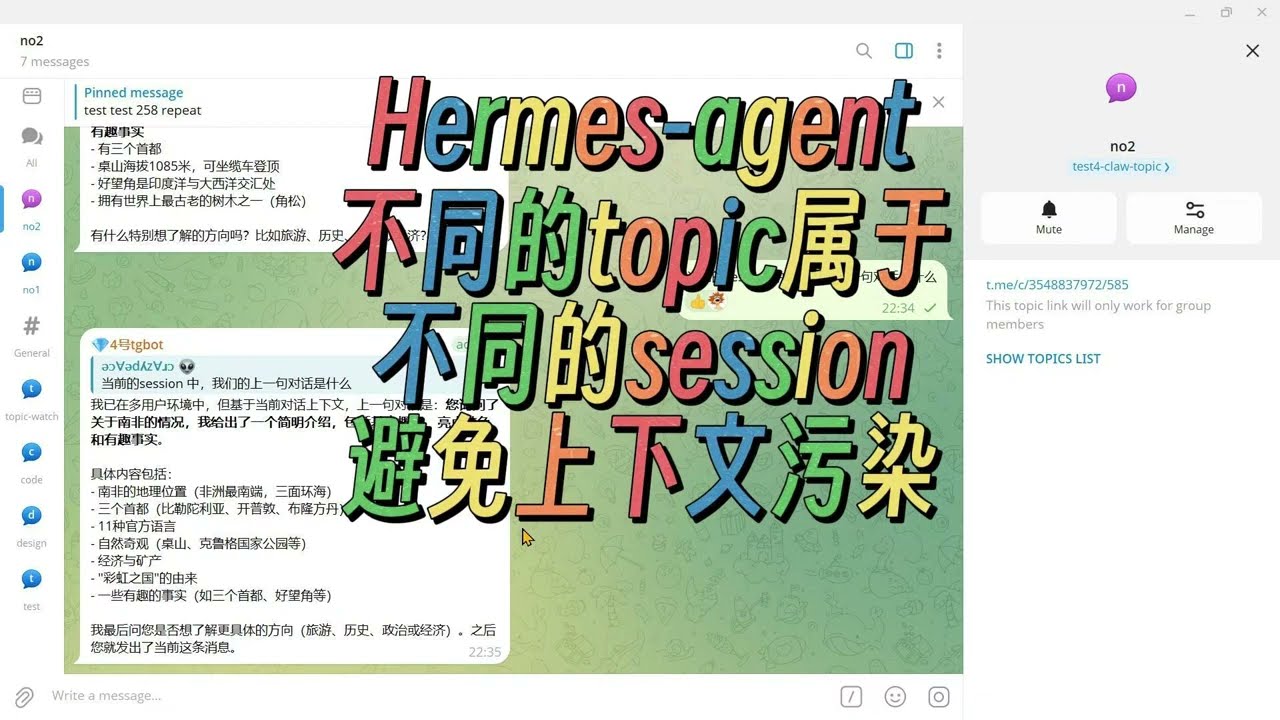
This involves some concepts about processes. Each gateway can even be isolated, so you can run multiple gateways at once—each chat bot corresponds to a service, working in different scenarios. It’s a feature that I really like.
Preparation
Server
You don’t need much—just a computer or a VPS, any OS is fine (Windows and Mac are both supported now).
For demo purposes, I’m using a VPS (Debian/Ubuntu, 4 core/6GB RAM/100GB disk)—that’s a little overkill, because I use mine long-term and run a lot of stuff on it. For minimum requirements, 2GB RAM and 20GB disk is enough.

The official team also offers hosted deployment—you can pay a fee to host your Hermes Agent on their servers if you don’t have your own physical hardware.
To SSH into your server, I highly recommend XTerminal—a great free tool for connecting via SSH.
XTerminal official website: https://www.xterminal.cn/
Model API
You’ll need an AI model API for your Hermes Agent. Here are two free options:
First: Use the official free models. Each period, the team releases a free quota for certain models—for example, Tencent’s Hunyuan 3 model is currently free. Just run: hermes setup --portal (Nous Portal free OAuth login, highly recommended for beginners)
Second: OpenRouter offers lots of free model access. Just register, and you’ll get free quota for different models.

OpenRouter: https://openrouter.ai/ Pro tip: some models have small quotas, but if you add $10 to your account, your quota goes up—just keep at least $10 in your account for more access.
Third: If you have DeepSeek, GPT, or other third-party APIs/accounts, you can use them too. Hermes Agent natively supports OpenAI, DeepSeek, Gemini, and 30+ providers, with all the APIs/auth methods—but you’ll need your own account (i.e., you’ll have to pay).

My suggestion: use a combination—for heavy-duty tasks, use paid models like GPT or DeepSeek, and for routine work use the free ones. For multi-modal or video tasks, choose the right model accordingly.
One-Click Installation
Installation is super easy—there are official one-click install scripts for every OS. Just copy and paste the command in your terminal.
All dependencies and packages are installed for you. Just keep pressing enter to confirm.

Linux / macOS / WSL2 :
curl -fsSL https://hermes-agent.nousresearch.com/install.sh | bash
Windows (Native, PowerShell):
iex (irm https://hermes-agent.nousresearch.com/install.ps1)
Installation from GitHub might be slow due to network issues; be patient, or find a third-party download source if needed.
First-Time Setup & Run
When you start for the first time, you’ll be prompted to choose between quick setup and global configuration. If you know what you’re doing, go with global config to set each item yourself. Otherwise, pick quick setup—just select a default model and you’re ready to go.
hermes setup --portal

This command uses the default Nous method to start and configure—just register on the website and authorize. The official team provides some free models, and the account process is very simple.
Hermes Agent is CLI by default, but the team also recommends using the TUI interface, which you can install with this command:
hermes --tui

Follow the prompts to finish setup, select your model, and send a message—for example, say “Hello”. If you get a reply, you’re all set.
In my case, I chose the default GPT-5.4 model and messaged “你好”. If it responds, everything is running correctly.

In the status area above, you can see context size, response time, and token usage. Even a simple “你好” used up 17.1k tokens—so be aware of costs.
Connect to Telegram: 24/7 Mobile Access
Installing and configuring your Hermes Agent and models is just step one. To use it anywhere, anytime, you need to connect it to a chat app.
The team provides several integration methods: Feishu, WeChat, Telegram, Discord, etc. It covers most popular chat software, and setup is straightforward—the instructions will appear in your terminal.
Setup command:
hermes gateway setup

Just select your chat app with the arrow keys—for example, Telegram. There are two ways: scan to authorize, or connect with a token.
Usually, you’ll create a bot and enter its Token. You may also need to enter your user ID for the whitelist—so only you can control it. If you don’t, anyone who knows your bot’s ID could control your Hermes Agent.

Once connected, you can chat with it and have it do anything you want. You can swap models to run different types of tasks. You’ll now have a 24/7 AI butler—I use mine for things like scheduled tasks, gathering info, organizing docs, and brainstorming ideas.
Basic Upkeep: Four Key Commands
Most people don’t read the official docs, but here are four essential commands I use often:
First: hermes doctor (Checkup) — checks the status of the entire Hermes Agent and alerts you to any issues, such as missing models or services not started. This is my most used command.
Second: hermes model (Switch brains) — switch out the AI model. You can do this from your chat interface or the console. Sometimes you want a cheaper model for routine work or a more advanced one for complex tasks.
Third: hermes update (Upgrade) — upgrades the agent. There are frequent updates, sometimes every few days. If you don’t want to reinstall, just use this command for seamless migration.
Fourth: hermes restart — restarts the service. If you change configs or update the service, it’s a good idea to run this to load the latest configs/version. It often fixes issues as well.
Final Thoughts
If you follow this guide, you’ll get a 24/7 personal Agent, along with all the commands to manage it, and a mobile entry point. What I love most is being able to call on it anytime for a task—no need to be at a computer. Whatever work I need done, I can do it instantly.
Plus, over time it packages my work patterns into custom skills. Next time I want it to do something for me, it can call on those skills and help me complete tasks—quickly and efficiently.
There are also advanced uses, such as having it leverage Codex or Claude Code. As long as those are installed on your VPS, you can have it help with coding, writing, even video editing. I hope everyone gives it a try—it’s really worth using.
If there’s enough interest or good feedback, I’ll share some advanced tips and personal experiences with using it in the future.